Backup Google Docs To Windows Azure Storage
If I have documents sitting in a cloud storage such as Google Docs, why do I need to back it up to a different cloud storage such as Azure Storage? Maybe because I need the peace of mind that I can access it the moment I need to. Or in some countries, access to one may be blocked such as in China for Google Docs and Google Picasa. Or maybe some days, one may go down as part of the cloud computing growing pain. Anyway, it is a good practice to back up.
This article will show you how to backup your Google Docs files on a daily basis to another cloud storage.
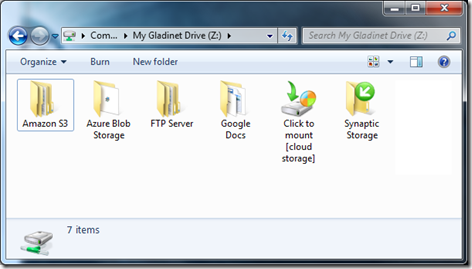
First you need to install Gladinet Cloud Desktop and map in your Google Docs and other cloud storages you have. In the following picture, I have Azure Storage, Amazon S3, a FTP Server and Google Docs all mapped in the Gladinet drive. (I have Synaptic Storage too but it is not configured yet)
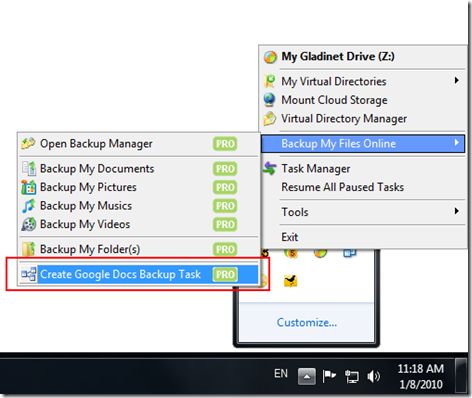
From the System tray menu, you can open Create Google Docs Backup Task.
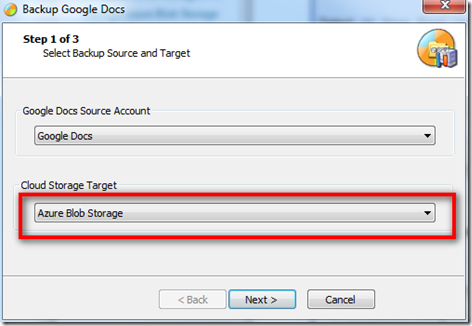
A Backup Wizard will appear, asking you where you want to backup to. Select Azure Blob Storage.
There are two modes of backup, one is a smaller scale by using a specific folder (Drop Folder) inside your Google Docs account. The other one is a bigger scale by backing up everything from the root folder.
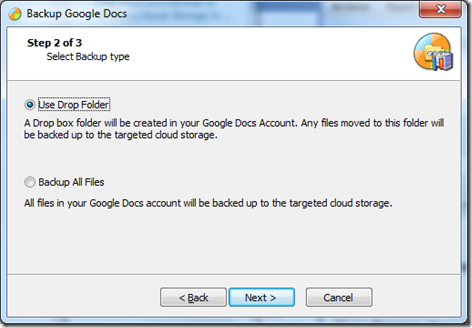
Since backup from the root is easier to understand, I will pick the other option – Use Drop Folder here.
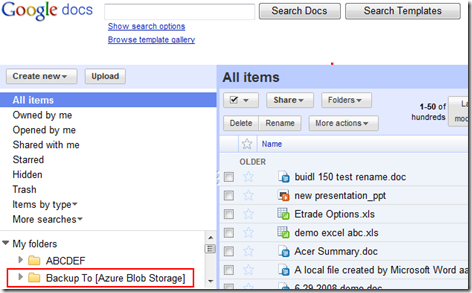
Inside my Google Docs account, there is a new empty folder Backup To [Azure Blob Storage]. Any file that is saved to this folder from Google Docs will be periodically backed up to Azure Storage.
If you pick the other option, Backup All Files, all the files in the Google Docs will be backed up to Azure Storage periodically.
This article will show you how to backup your Google Docs files on a daily basis to another cloud storage.
First you need to install Gladinet Cloud Desktop and map in your Google Docs and other cloud storages you have. In the following picture, I have Azure Storage, Amazon S3, a FTP Server and Google Docs all mapped in the Gladinet drive. (I have Synaptic Storage too but it is not configured yet)

From the System tray menu, you can open Create Google Docs Backup Task.

A Backup Wizard will appear, asking you where you want to backup to. Select Azure Blob Storage.

There are two modes of backup, one is a smaller scale by using a specific folder (Drop Folder) inside your Google Docs account. The other one is a bigger scale by backing up everything from the root folder.

Since backup from the root is easier to understand, I will pick the other option – Use Drop Folder here.

Inside my Google Docs account, there is a new empty folder Backup To [Azure Blob Storage]. Any file that is saved to this folder from Google Docs will be periodically backed up to Azure Storage.
If you pick the other option, Backup All Files, all the files in the Google Docs will be backed up to Azure Storage periodically.



Comments